If you missed my recent webcast of What's New in Revit Architecture 2010, here is a link to the recording of my webcast. The recording is a little over an hour long.
http://209.16.228.54/webcast/WhatsNewInRevitArchitecture2010.swf
Enjoy!
Thursday, May 14, 2009


Friday, April 17, 2009
Space Enhancements in Revit MEP 2010
Revit MEP 2010 has many new features. Here are just a couple when working with Spaces.
Spaces have been enhanced in two major areas. First the ability to create spaces has been improved with the addition of the Place Space Automatically tool. This will allow users to place all the spaces for the entire model with a single click. This is a huge time saver for creating spaces.

Spaces have been enhanced in two major areas. First the ability to create spaces has been improved with the addition of the Place Space Automatically tool. This will allow users to place all the spaces for the entire model with a single click. This is a huge time saver for creating spaces.

The new Place Space Automatically tool.
The second enhancement to spaces is found in the properties. The properties have been improved to give us the ability to further define the space type. The space type has been expanded to include Energy analysis settings. These include the ability to specify an Occupancy Schedule, Lighting Schedule, and Power Schedule. These schedules will dictate usage percentage factors. If the proposed building will be primarily used between the hours of 8:00-5:00, these can be specified and taken into account in analysis.
A custom Occupancy Schedule for a Space type with the hours set for the warehouse hours.
I will try to blog about more new features in Revit MEP 2010 soon.
Thursday, March 12, 2009
Cool New Stuff in Revit Architecture 2010
It's that time of year again! Time to gear up for the new release of the Autdesk products. Revit Architecture 2010 has some nice new features. Here are some of my favorites that have not gotten much publicity. Enjoy!
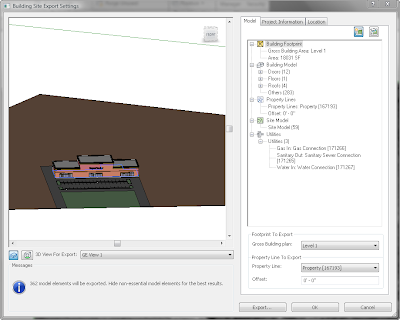
1. Export Building Site Tool - This is a great addition to allow you to export your building site and model to your Civil engineer. It grabs the site, model, building footprint, property lines, and UTILITY Connections and groups them into a new .adsk file format. I especially love the ability to show the Civil engineer where the utility connections are located. Not only that, if they are using Civil 3D 2010, they can actually connect their pipes to our connections.
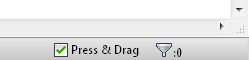
2. The Press & Drag check box on the bottom right corner of the screen. I have always hated how easy it was to accidentally pick and move something inside of Revit without meaning to. Now you can uncheck this check box and you have to first pick the item you want to move before you can move it. This will make my life so much easier!
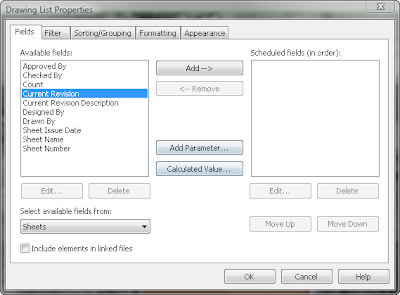
3. The ability to include sheet revisions in a Drawing List. We are no longer limited to just showing revisions on the titleblocks. We now have the ability to add the Current Revision and Current Revision Description to a Drawing List.
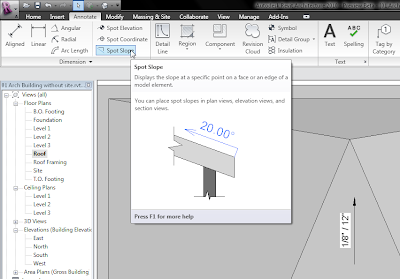
4. The ability to label slopes. This was high on my wish list. I now can call out the slopes on my roofs and floors.
Those are my top 4 non-publicized new features inside of Revit Architecture 2010. More to come soon!
1. Export Building Site Tool - This is a great addition to allow you to export your building site and model to your Civil engineer. It grabs the site, model, building footprint, property lines, and UTILITY Connections and groups them into a new .adsk file format. I especially love the ability to show the Civil engineer where the utility connections are located. Not only that, if they are using Civil 3D 2010, they can actually connect their pipes to our connections.
2. The Press & Drag check box on the bottom right corner of the screen. I have always hated how easy it was to accidentally pick and move something inside of Revit without meaning to. Now you can uncheck this check box and you have to first pick the item you want to move before you can move it. This will make my life so much easier!
3. The ability to include sheet revisions in a Drawing List. We are no longer limited to just showing revisions on the titleblocks. We now have the ability to add the Current Revision and Current Revision Description to a Drawing List.
4. The ability to label slopes. This was high on my wish list. I now can call out the slopes on my roofs and floors.
Those are my top 4 non-publicized new features inside of Revit Architecture 2010. More to come soon!
Thursday, January 08, 2009
Seeing Things Above
Revit has some great tools to help us view a model from many different positions. We can have plans, ceiling plans, elevations, sections, 3d views or 3d sections. This enables us to view what we want when we want to see it.
I get lots of questions concerning the View Range in the View Properties. The View Range will allow you to change your Cut Plane and set your upper and lower limits. This is very helpful, but you need to understand one key rule: Revit will not actually show an item unless the view is cutting through that item.
A floor plan is typically a plan that is looking down and is cut by default 4'-6" above the level line. This means that a light fixture that is 8'-0" above the level line is not being cut by the cut line, which means that the light fixture will not be seen in the floor plan. One of the most common questions I get is "how do I get Revit to show the something on the ceiling on a floor plan?"
Here is a quick fix to be able to show light fixtures in your floor plan. Simply open the light fixture in the Family Editor, and draw a WHITE Model line from the fixture to the level line. This will cause the cutline to cut through the white model line and then show up on the floor plan. It should be white so it will not show up on the screen or on a plot.
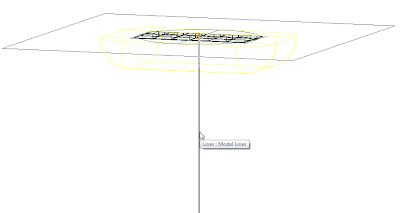
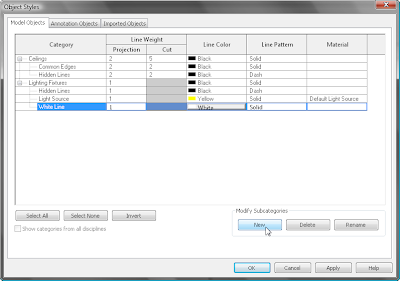
To create the Model line, it works best to draw it in an elevation view. Once it is drawn you will need to create a new subcatagory in the Object Styles under Light Fixtures and assign that catagory to use a white line.
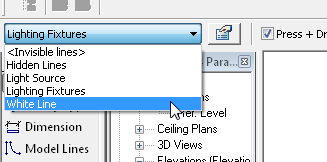
Then you will need to change the line to be assigned to the new sub catagory.
Load the light fixture back into your project and your light fixture now shows up in the floor plan. You may also want to override the graphics of the linework for the light fixture in the floor plan to be a hidden or dashed line.
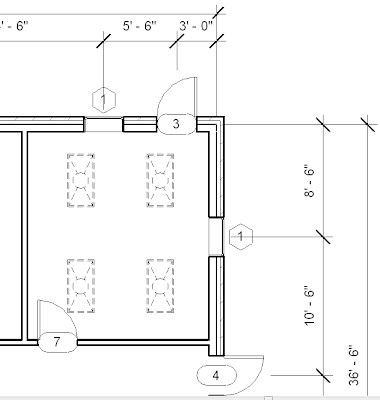
This is a quick and easy way to show items above that are not being cut by the cut plane.
Tuesday, January 06, 2009
Using Schedule Keys in Revit
I have found that one of the most unknown parts of Revit is creating schedule keys. I think creating schedule keys are a great way to promote standards, and provide the information you need on your schedules.
Schedule Keys are nothing more than a schedule of keys that you can use in other schedules. They are associated to a particular catagory and create a paramater for that catagory that can be used in schedules. There are many instances where these could be beneficial. I will give one example to show you how you can begin to use them in your projects.
Let's say you want to create a typical room finish schedule, but it is early on and you are not sure what the actual finishes will be. You do know what the finish material will be but not the actual color or manufacturer. For example, you want to call out CPT-1, or TILE-1 to call out the material as carpet or tile, but you do not know the particular carpet or tile. I am able to create a schedule key for the types of materials and apply them to my room finish schedule, and fill what the actual keys refer to when that information is known.
Schedule Keys are nothing more than a schedule of keys that you can use in other schedules. They are associated to a particular catagory and create a paramater for that catagory that can be used in schedules. There are many instances where these could be beneficial. I will give one example to show you how you can begin to use them in your projects.
Let's say you want to create a typical room finish schedule, but it is early on and you are not sure what the actual finishes will be. You do know what the finish material will be but not the actual color or manufacturer. For example, you want to call out CPT-1, or TILE-1 to call out the material as carpet or tile, but you do not know the particular carpet or tile. I am able to create a schedule key for the types of materials and apply them to my room finish schedule, and fill what the actual keys refer to when that information is known.
Let's begin by creating the schedule key.
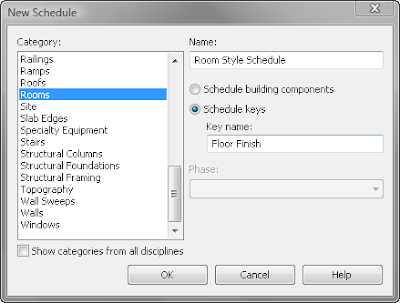
I begin by starting a new Schedule by clicking on Schedule/Quanity from the View tab on the Design Bar. I select Rooms as my catagory since I am creating a key for the room finish. I then select to create a Schedule Key as opposed to a Building Component type of schedule. I also fill in the Key Name as Floor Finish. This is the name of the new parameter that will be added to rooms. I select OK to go to the next step.
I begin by starting a new Schedule by clicking on Schedule/Quanity from the View tab on the Design Bar. I select Rooms as my catagory since I am creating a key for the room finish. I then select to create a Schedule Key as opposed to a Building Component type of schedule. I also fill in the Key Name as Floor Finish. This is the name of the new parameter that will be added to rooms. I select OK to go to the next step.
In the Schedule Properties - Fields Tab, the Key Name is added automatically to the Scheduled Fields column. I need to add one additional field for the manufacturer of the finish. I do this by clicking on Add Parameter and fill in the name Floor Manufacturer.
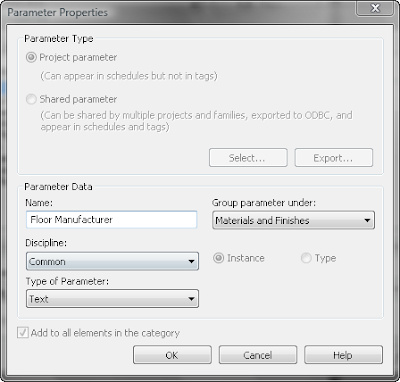
The Key Name and the Floor Manufacturer are the only fields that are needed for the schedule key. Select OK to close the dialog box and to open the schedule key view.
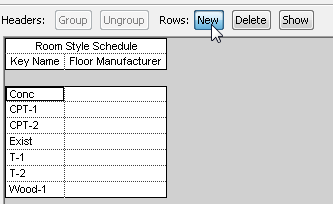
In the schedule key view, you can add new Key Names by clicking the NEW icon on the Options Bar. Create the common finishes that you typically use. Others can be added later, and the manufacturer information can be added at a latter time.
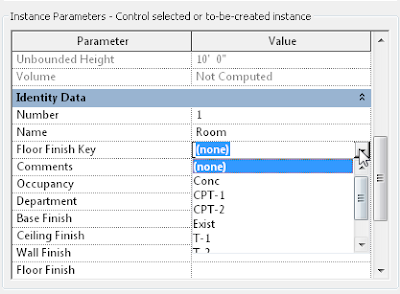
Now when you either go to a Room properties or create a Room Finish Schedule, the Floor Finish key parameter will be listed. You can select what type of floor finish by using the drop down arrow to list the keys that were created in the Schedule Key.
The schedule key can be created in your standard Revit template file and the information can be filled in as it is known. This will create a standard list of finish names to be used in your office.
Schedule Keys are the key to creating consistancy and standards in Revit.
Schedule Keys are the key to creating consistancy and standards in Revit.
Thursday, November 13, 2008
AU Customer Appreciation Mixer
Autodesk University is almost here! I am gearing up for a jam packed week of classes and events. My schedule is crazy this year. I am not sure when I will have a chance to rest, but it will be worth it (I think.)
I will be teaching 3 classes, and assisting as a lab assistant for 2 labs plus attending sessions on Revit and Construction.
Looking at the schedule, it appears that my nights will be just as busy... and I am not the party animal if you do not know me very well.
If you are an Alacad customer, I want to personally invite you to attend a special Customer Appreciation Mixer. Alacad wants to say Thank You for being our customer by hosting a mixer on Monday night at the V Bar from 7:00-8:00. Shoot me an email to ensure that you have your ticket to join us. You must have a ticket to attend.
I am looking forward to meeting many of you that are attending. Find me if you can in the sea of 10,000 attendees. See ya in Vegas!
I will be teaching 3 classes, and assisting as a lab assistant for 2 labs plus attending sessions on Revit and Construction.
Looking at the schedule, it appears that my nights will be just as busy... and I am not the party animal if you do not know me very well.
If you are an Alacad customer, I want to personally invite you to attend a special Customer Appreciation Mixer. Alacad wants to say Thank You for being our customer by hosting a mixer on Monday night at the V Bar from 7:00-8:00. Shoot me an email to ensure that you have your ticket to join us. You must have a ticket to attend.
I am looking forward to meeting many of you that are attending. Find me if you can in the sea of 10,000 attendees. See ya in Vegas!
Friday, October 10, 2008
Enhancing Elevations in Revit
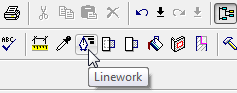
Creating elevations in Revit are as simple as placing a callout. Enhancing the elevations once they are created is another task. Tools like the Linework, Split Face, and Paint help us enhance the elevations. The Linework tool will allow us to change the lineweight of any line in the view, or set it to be invisible if we do not want to see it.
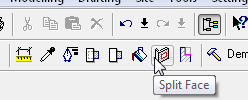
 The Split Face and the Paint tools allow us to split the surface of a wall and apply a different material to that portion of the wall.
These tools are great, but there is nothing built in the program to vary the lineweight automatically based on the depth of view. It would be nice for Revit to allow us to set some depth distances to automatically switch lines that are in the forground to be thick and the lines in the distance to be thin. Maybe some day we will have that.
Another tool that I find handy that few people know about is the Silhouette Edge setting. This setting will allow you to beef up the lineweight of the silhouette edge. This setting is found in the Advance Model Graphics Settings dialog box.
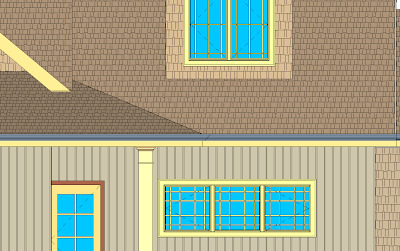
This should give you a head start on enhancing your elevations. You can still use the Linework tool with the Silhouette Edges turned on.
The Split Face and the Paint tools allow us to split the surface of a wall and apply a different material to that portion of the wall. These tools are great, but there is nothing built in the program to vary the lineweight automatically based on the depth of view. It would be nice for Revit to allow us to set some depth distances to automatically switch lines that are in the forground to be thick and the lines in the distance to be thin. Maybe some day we will have that.
Another tool that I find handy that few people know about is the Silhouette Edge setting. This setting will allow you to beef up the lineweight of the silhouette edge. This setting is found in the Advance Model Graphics Settings dialog box.
 Inside the Advance Model Graphics Settings dialog box you can set the silhouette edges to any linetype you have in your project. This will automatically apply this linetype to the outside edges of your view.

Here is a before and after view with the Silhouette Edges changed to Medium Lines.
Silhouette Edge set to None
 Silhouette Edges set to Medium
This should give you a head start on enhancing your elevations. You can still use the Linework tool with the Silhouette Edges turned on.
Monday, September 15, 2008
CADD Camp and AU
For those that are in the Alabama area, do not miss out on this year's CADD Camp in Birmingham on September 30!
We will be hosting a full day of training on Revit. I will also be presenting the basics of NavisWorks during lunch.
Check out the course offerings and sign up at:
http://www.augievents.com/Birmingham/tabid/432/language/en-US/Default.aspx.
This will be like a mini-one-day Autodesk University.
If you are fortunate enough to attend this year's Autodesk Unversity, check out the three classes that I will be presenting.
We will be hosting a full day of training on Revit. I will also be presenting the basics of NavisWorks during lunch.
Check out the course offerings and sign up at:
http://www.augievents.com/Birmingham/tabid/432/language/en-US/Default.aspx.
This will be like a mini-one-day Autodesk University.
If you are fortunate enough to attend this year's Autodesk Unversity, check out the three classes that I will be presenting.
- AB110-6 AutoCAD® Architecture: Making Spaces Work For You!
- CV310-4 From Dirt to Doors: Making AutoCAD® Civil 3D® and Revit® Architecture Work Together In Harmony
- AB404-3 From the Existing to the Beyond with Revit® Design Options and Phases
These are both great opportunities, don't miss out!
Wednesday, May 07, 2008
Seek for Content
There is a new Autodesk website available to search for Revit Content.
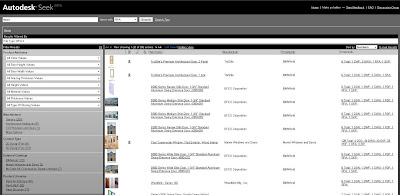
Go to http://seek.autodesk.com/. You can search by keyword, browse by CSI format, and filter it down by manufacturer. It appears to pull from multiple websites. It is a one stop shop for all your content searches.
There is also a built in search line inside of the Revit 2009 products that will launch this site.
Go to http://seek.autodesk.com/. You can search by keyword, browse by CSI format, and filter it down by manufacturer. It appears to pull from multiple websites. It is a one stop shop for all your content searches.
There is also a built in search line inside of the Revit 2009 products that will launch this site.
Wednesday, February 13, 2008
AutoCAD Architecture 2009
AutoCAD Architecture 2009 has some cool new features. I believe users will be excited to see the new enhancements. Here are a few of my favorites.
Wall Endcaps


Now AutoCAD Architecture 2009 makes it easier to create custom wall endcaps. While previous releases had this ability, enhancements to key “grip-edit” functionality makes the process more intuitive and streamlined.
Additionally, it’s easier than ever to modify endcaps using the “Auto-Calculate” feature and the integration of AEC Modify Tools.
Because of this, it’s now possible to extend, trim, and even merge wall components with AutoCAD linework, allowing you to create the endcap condition that you want… in fewer steps!
Match Properties Update
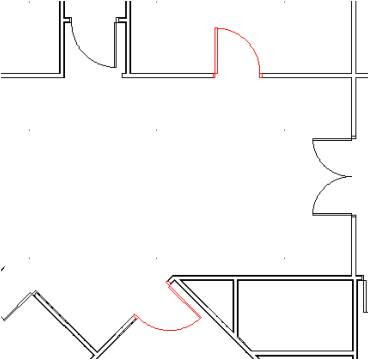
If you’re an AutoCAD user, you are probably aware of the Match Properties feature, commonly referred to as the “Paintbrush tool.”
Now, in AutoCAD Architecture, the “Paintbrush Tool” has been extended beyond AutoCAD entities to also work with AEC objects, such as walls, doors, and windows. The object matching paintbrush will allow users to match the style and graphic properties of one object to like objects in a drawing.
With this update, you’ll be able to quickly make design revisions to linework and objects, so that you don’t have to learn a separate set of revision commands!
Multiline Tags


Another feature around construction documentation is the ability to annotate with multi-line tags.
Now you can have more control over the way text appears in your construction documents by specifying text wrapping, rotation, and alignment in its tags with intuitive grips. With these tools, you’ll find it easier to communicate your design intent clearly.
These are just a few of the improvements. I believe the users will be happy with this release.
Tuesday, February 12, 2008
Welcome to Revit Architecture 2009
It's that time again! Time get excited about what the new features are in the up coming release of Autodesk products. My favorite time of the year!
Revit Architecture 2009 will be here soon. Inside of it will be new features and enhancements that will make your work easier. Here is a sneak peek at a couple of my favorite enhancements.
Dimension Enhancements
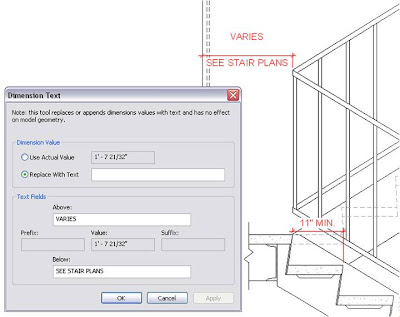
Revit Architecture 2009 makes documenting your designs even easier. With new dimension capabilities, users can dimension to intersections and arc centers. New dimension text formatting enables users to apply common text effects, such as bold, italics, and underline, to their dimension text.
A second new addition to dimensions is the ability to override dimensions with text. While this feature enables users to override dimensions with text such as “Varies, See Stair Plans” or “11” MIN” and thereby achieve new flexibility in their documents, the feature helps to maintain model integrity by disallowing user overrides that misrepresent actual dimensions. For example, users cannot make a 14’ 4” dimension read 14’ 6”.
Revision Enhancements
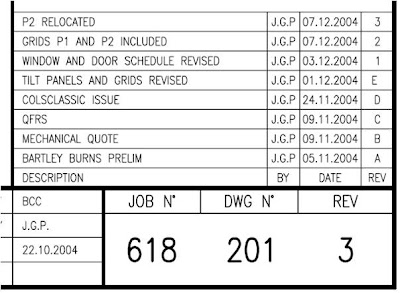
The new revision enhancements allow architects and designers achieve the various revision styles that they demand. New flexibility enables revision tables to build from the bottom up or top down. Also, numbering sequences can include and be sorted by numbers or letters. A new field called “Issued By” helps revision tracking.
New flexibility for revision layouts includes an ability to rotate the schedule on a sheet and to set revision schedules to fixed or variable size.
The added control and flexibility over revisions makes the differing standards in various regions around the world easy to meet.
Pretty cool! More to come soon.
Tuesday, January 29, 2008
Adjusting Door Swings
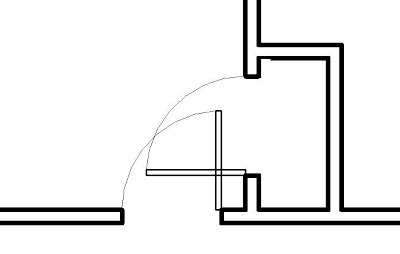
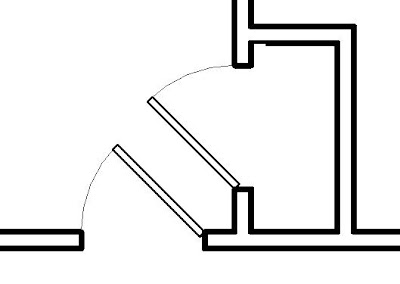
Revit comes with many types of doors that can be used in your projects. You can also download additional types from sites like Revit City and BIM World. Searching through these libraries, I relealized that none of them came with the ability to adjust the swing from 90 degrees to 45 degrees. This is a must in situations as shown below.
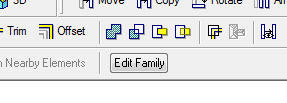
 Modifying the plan swing of doors is a simple process, as long as you understand a few things. You will need to open the door family that you want to modify by highlighting the door in your project and then picking the Edit Family button on the Options bar.
This will open up the door family in a Family Editor mode. You will then need to navigate Project Browser to open the floor plan view of the door.

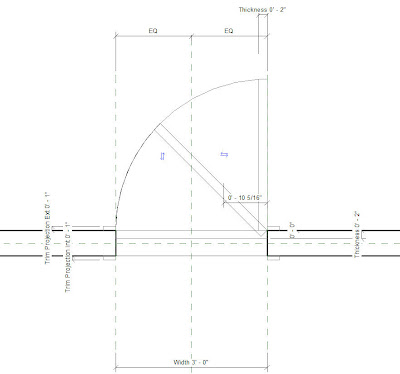
Modifying the plan swing of doors is a simple process, as long as you understand a few things. You will need to open the door family that you want to modify by highlighting the door in your project and then picking the Edit Family button on the Options bar. This will open up the door family in a Family Editor mode. You will then need to navigate Project Browser to open the floor plan view of the door.
Revit uses Symbolic Lines to represent the swing and the door panel in plan views. The actual 3D door panel is not visible in the plan view because we typically want the door panel to be closed in a 3D view or elevation, and we want the door panel to be open in plan views.
To add additional swing angles, simply copy the existing door panel to the desired swing angle. I used the Rotate command with the Copy Option check so it would rotate and copy the panel in one step. Then you will need to copy the swing arc and trim it with the new door panel.
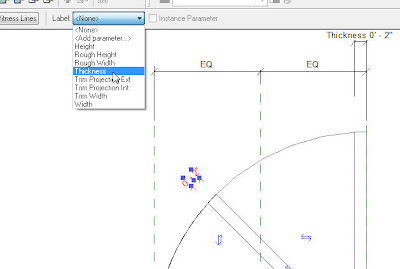
The thickness of the door panel is set to a thickness parameter that users can change. You will need to add a new dimension to the new door panel. Once this dimension is added, assign it to the thickness parameter by using the Label drop down bar on the Options bar.
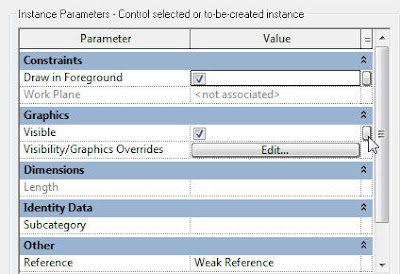
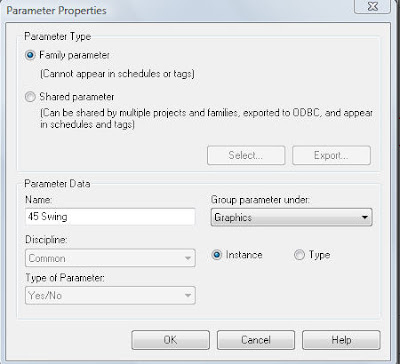
The last step is to set the visibility parameters to allow one swing to be visible and the other swing to be hidden. To do this, you will need to highlight one panel and the corresponding swing arc. Once highlighted, go into the Properties and select the small box at the end of the Visible check box.
This will allow you to set the visibility to a parameter that users can control inside of their projects. Add a new parameter. Provide a name for the parameter that relates to the swing angle. Make the parameter an instant parameter so users can control this instantly as opposed to by type. Choose the group to place this parameter under. Repeat this process for the other door panel and swing arc. In the end, you should have one door panel and swing arc set to one visibility parameter, and the other door panel and swing arc set to another visibility parameter.
Load this door back into your project or save it to your library. Now when you select this door inside of your project, you will have the ability to check the box to show which swing you want to view. The end result is a plan that does not have doors swinging into each other.
Monday, October 29, 2007
Revit MEP Blog
Kyle Bernhardt of Autodesk has started a new Revit MEP blog called Inside the System. Check it out. It already has 3 great videos on creating view filters, and creating systems inside of Revit MEP.
Wednesday, October 17, 2007
Gearing Up for Birmingham CAD Camp!
Alacad will be hosting CAD Camp in Birmingham, AL on Thursday November 8th. I have just finished my courseware for this event and I think it will be an outstanding day of learning. Plan to attend if you are in the area.
Here is the line up for the Architecture and Building track.
Check out the complete course descriptions at www.cadcamp.com/birmingham.
Register TODAY!
Here is the line up for the Architecture and Building track.
- AutoCAD Architecture 2008 - Making Spaces Work For You! (revised and improved from last year)
- Revit Architecture 2008 - Design Options - Existing and Beyond
- Revit Architecture, Revit MEP, Revit Structure 2008 - Completing the BIM Model - Collaboration Across Disciplines
- Revit Architecture 2008 - Raising the Roof - Creating Roofs in Revit
- Revit Architecture 2008 and AutoCAD Civil 3D - From Dirt to Doors – Making Civil 3D and Revit Work Together
Check out the complete course descriptions at www.cadcamp.com/birmingham.
Register TODAY!
Friday, September 21, 2007
Revit and Google Earth
If you are a subscription customer using Revit, then listen up. Autodesk has finally posted their Google Earth extension that you can download to add your project to Google Earth or bring a Google Earth image into your project. Simply log into your subscription site and look for the Revit Globe - Link. You will find it on the "Autodesk Building Solutions Product Modules, Add-Ons, and Enhancement" page.

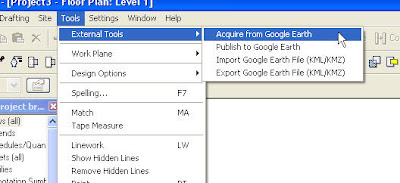
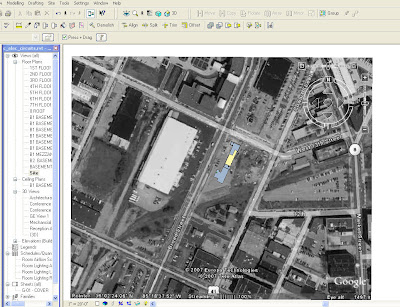 If you want to publish your 3D model into Google Earth, you will need to switch to a 3D view in Revit and use the Publish to Google Earth tool. This will add a Temporary Place to your list inside of Google Earth. You can then zoom and orbit to see how your building fits within its context.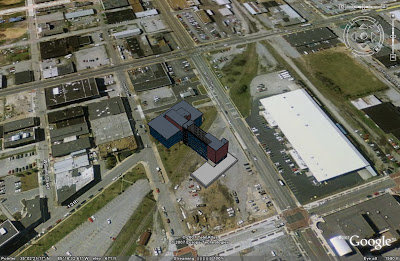
Once you have installed this, it will load some new commands to your Tools pulldown menu.
You must have Google Earth downloaded, installed, and running to use these tools. If you want to bring in an image from Google Earth, simple navigate to your site in Google Earth, then switch to Revit and use the Acquire from Google Earth tool. It works great for creating a site plan with the surrounding terrain.
If you want to publish your 3D model into Google Earth, you will need to switch to a 3D view in Revit and use the Publish to Google Earth tool. This will add a Temporary Place to your list inside of Google Earth. You can then zoom and orbit to see how your building fits within its context. This is just a quick example of how you can begin to move your model to a site.
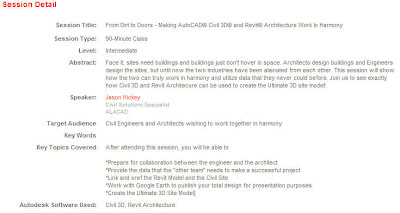
I will take this opportunity to advertise for one of the Autodesk University classes that I will be assisting with. It is not being advertised very well to the architectural community because it is listed in the Civil track. I am teaching "From Dirt to Doors" with my in-house Civil guru, Jason Hickey. Check it out the description below and sign up for it.
I will take this opportunity to advertise for one of the Autodesk University classes that I will be assisting with. It is not being advertised very well to the architectural community because it is listed in the Civil track. I am teaching "From Dirt to Doors" with my in-house Civil guru, Jason Hickey. Check it out the description below and sign up for it.
Revit Wall Library
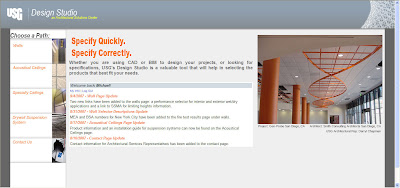
Are you trying to set up Revit Architecture for your company? If so, creating wall families can be a time consuming part of your task. I have a possible short cut for you. USG's web site has lots of walls, acoustical ceilings, and custom ceilings available for you to download. They have created just about their entire library of walls and ceilings in Revit format that you can download for free.
This brings up a good topic to discuss... How are you creating wall libraries? I have worked with several firms that are trying to tackle this issue. Your first thought might be to simply load them into your standard template. That is okay if you don't mind working in a large template with extra families that may never be used. Walls are project created families. You cannot have external files of walls like you do for other families (i.e. doors, windows, furniture.) I have found that the easiest way to have a library of walls is to create a separate project that is stored on your network that has nothing but wall families created in it. Users can open this project and find the wall they want to use and simply use the Copy/Paste command to copy the wall to their current project. I would create a view in this "wall project" that lists all the walls in an order that everybody understands. It could be similar to the way USG has created their files, as shown below.
I think manufacturers are finally realizing that Revit is here, and here to stay. I look forward to other companies making Revit content available in addition to the standard .dwg format. But until all manufacturers grasp this concept, you can continue to use my two favorite web sites to grab content for your project. If you have not already, check out Revit City and BIM World. They contain lots of information. Just be careful what you get for free, because sometimes what looks correct is not always the case. For example, I am working with my church to develop plans for a new multi-purpose building, and I downloaded a basketball court to use. Lo and behold, when I pulled down my nifty Graphic Standards, I found that the court was 10' too small.
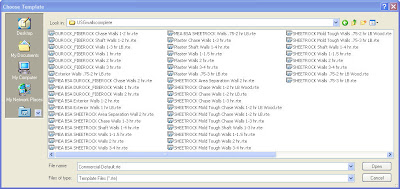
You can download the entire wall library, or search for a particular wall that meets your needs. Once downloaded, you will see that they are .rvt files (Revit Template files). You can start a new project, and browse to open the particular template that you are looking for. Here is a view of the available wall templates.
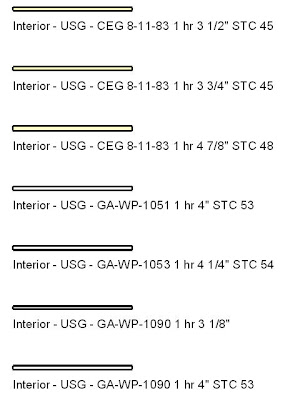
This brings up a good topic to discuss... How are you creating wall libraries? I have worked with several firms that are trying to tackle this issue. Your first thought might be to simply load them into your standard template. That is okay if you don't mind working in a large template with extra families that may never be used. Walls are project created families. You cannot have external files of walls like you do for other families (i.e. doors, windows, furniture.) I have found that the easiest way to have a library of walls is to create a separate project that is stored on your network that has nothing but wall families created in it. Users can open this project and find the wall they want to use and simply use the Copy/Paste command to copy the wall to their current project. I would create a view in this "wall project" that lists all the walls in an order that everybody understands. It could be similar to the way USG has created their files, as shown below.
I think manufacturers are finally realizing that Revit is here, and here to stay. I look forward to other companies making Revit content available in addition to the standard .dwg format. But until all manufacturers grasp this concept, you can continue to use my two favorite web sites to grab content for your project. If you have not already, check out Revit City and BIM World. They contain lots of information. Just be careful what you get for free, because sometimes what looks correct is not always the case. For example, I am working with my church to develop plans for a new multi-purpose building, and I downloaded a basketball court to use. Lo and behold, when I pulled down my nifty Graphic Standards, I found that the court was 10' too small.
Wednesday, June 13, 2007
Making Plans for AU 2007
Yours truly will be presenting at Autodesk University 2007 in Las Vegas. That's right, I was informed this week that I will be presenting two classes.
The first will be a 1.5 hours class titled, "Using Spaces Effectively in AutoCAD Architecture. This will cover everything you need to know about getting information out of your project by using spaces.
The second class will be co-presented with my in-house Civil guru, Jason Hickey. It is titled, "From Dirt To Doors - Making Civil 3D and Revit Work Together in Harmony." We will focus on the workflow between the two products. Currently, this class will be offered under the Civil Track, but it is being considered for a second time slot under the Architectural track.
Mark your calendars for November 27-30 for AU 2007. Registration begins in August. Check out the AU website for more information.
The first will be a 1.5 hours class titled, "Using Spaces Effectively in AutoCAD Architecture. This will cover everything you need to know about getting information out of your project by using spaces.
The second class will be co-presented with my in-house Civil guru, Jason Hickey. It is titled, "From Dirt To Doors - Making Civil 3D and Revit Work Together in Harmony." We will focus on the workflow between the two products. Currently, this class will be offered under the Civil Track, but it is being considered for a second time slot under the Architectural track.
Mark your calendars for November 27-30 for AU 2007. Registration begins in August. Check out the AU website for more information.
Wednesday, April 25, 2007
Sloped Floors and Roofs in Revit - A Great Addition
The Revit Development Team put in a last minute addition to Revit Architecture 2008. It did not show up in any of the Beta’s, nor has it been mentioned in any of the marketing, but it is one of the better enhancements to the program. Have you ever tried to create a sloped floor or a flat roof with slopes? What a pain it used to be. Now in 2008 it is a breeze. This works both on floors and roofs (with no defining edges.)
Place a floor or roof as you normally do. Once the floor or roof is drawn, if you reselect it, you will see a new set of tools on the Option Bar. These tools were taken from the Revit Structure program. In Revit Structure they use these tools on slabs. Now thanks to this last minute add, we can use them on floors and roofs.

When selecting the first one, Modify Sub-Elements, you will see a green line outlining your floor or roof, and green grips on each corner. You can move the entire edge or individual corners up or down. You can also create warped slabs by moving corners in opposite directions.
 The second button, Draw Points, will allow you to assign a spot grade at any point. You also use the Draw Split Lines button to split the surface of your floor or roof into multiple surfaces. This does not make your floor or roof into two elements, it just divides the surface.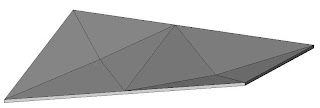
These tools are great, but I can already think of two additions that would make it even better. I would like a way to type in a slope angle or percentage. I would also want to be able to label the spot points with a tag that would call out the elevation. Currently these options are not available. Put these on your wish list. I guess they have to leave something for the next release.
Friday, April 13, 2007
Happy Anniversary
It's hard to believe that it has been a year. It was one year ago, that I was convinced by my co-worker, Jason Hickey, to start a blog. Looking back, I feel that it has been successful. I never thought it would take off, but here we are a year later getting 200-500 hits a day. I hope to continue to provide useful information to my AEC readers.
Thank You for reading!
Thank You for reading!
A Dashboard that Might Get Used in 2008
The Dashboard was introduced in AutoCAD 2007. It was a new palette that few people found a use for. It had all kinds of 3D rendering/visualization tools on it, but unless you were working on a rendering, you probably turned it off. I would even go as far as to say that most people probably turned it off the first time they launched 2007 and never turned it back on. I mean, why would you when you already have your favorite toolbars and tool palettes? It was just something that took up valuable screen space.
Let me introduce you to the new and improved 2008 Dashboard. This one might make the cut when users launch 2008 for the first time, if they understand that it is now CUSTOMIZABLE! That's right, it is totally customizable. You can add or delete what you want. You can put all your favorite commands in one spot and completely turn off all those toolbar buttons.
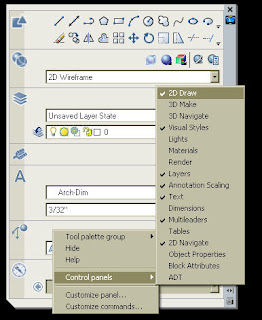
The out of the box dashboard comes with several predefined Control Panels that have various tools on them. If you right click, you can select which ones you want by picking Control Panel and then checking the ones you want on. You can also right click on a panel that is currently on, and select Hide to turn it off.
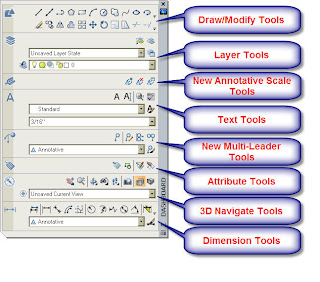
I would start by browsing through these, turning off the ones you do not like, and leaving the ones you do like. Here is a sample of my favorite ones.
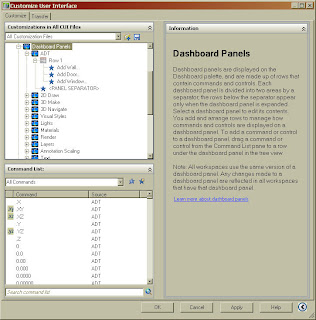
 You can also go into the CUI by right clicking on the dashboard and selecting Customize Commands. Once inside the CUI, there is a new category for the Dashboard. Here you can add new panels and simply drag and drop your favorite commands onto the newly created panel.
With these added enhancements to the Dashboard, I can visualize everyone dashing off to customize their dashboard ( I know it's corny, but it could happen!)
Let me introduce you to the new and improved 2008 Dashboard. This one might make the cut when users launch 2008 for the first time, if they understand that it is now CUSTOMIZABLE! That's right, it is totally customizable. You can add or delete what you want. You can put all your favorite commands in one spot and completely turn off all those toolbar buttons.
The out of the box dashboard comes with several predefined Control Panels that have various tools on them. If you right click, you can select which ones you want by picking Control Panel and then checking the ones you want on. You can also right click on a panel that is currently on, and select Hide to turn it off.

I would start by browsing through these, turning off the ones you do not like, and leaving the ones you do like. Here is a sample of my favorite ones.
 You can also go into the CUI by right clicking on the dashboard and selecting Customize Commands. Once inside the CUI, there is a new category for the Dashboard. Here you can add new panels and simply drag and drop your favorite commands onto the newly created panel.
With these added enhancements to the Dashboard, I can visualize everyone dashing off to customize their dashboard ( I know it's corny, but it could happen!)
Subscribe to:
Posts (Atom)